
 In this blog, we are going to create a Slack app to allow us to interact with Faraday API using its known Slash Commands.
This allows for flexibility in performing various security tasks and queries directly from Slack. Providing visibility into Faraday’s data and functionality within the Slack environment. Helping security teams stay informed.
For this purpose, we need the following:
– We need permissions over a slack workspace to create our new Slack app.
– We require a Faraday installation already working.
– We require a Faraday dedicated user for this slack bot. We could use an already created user, but we don’t recommend this.
Step 1: Creating our Slack App
The first thing we need to do is enter to this URL After that, click on the button Create an App. A popup will appear, so you need to put the app name and select the related workspace. Then click on the button Create App.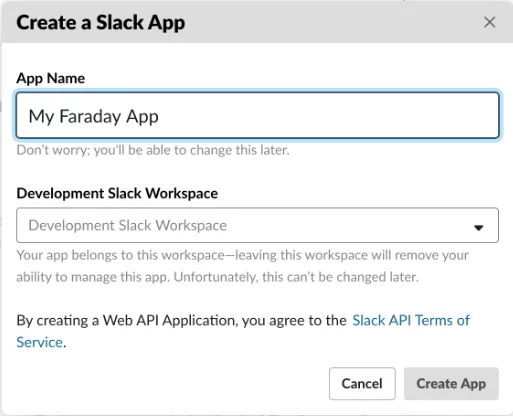
After creating our Slack app, we need to save the Signing Secret that appears in the App Credentials section because we will use it later.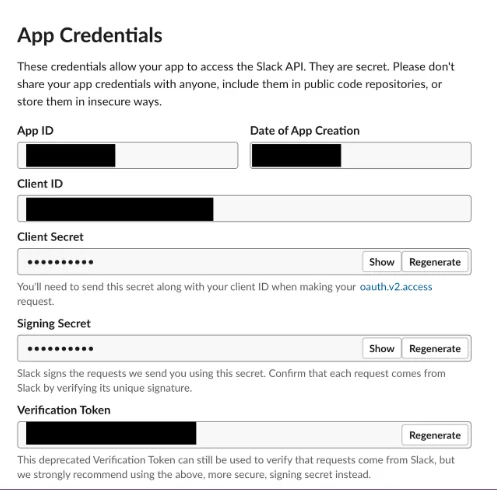
Step 2: Starting our faraday-slackbot server
Once we’ve created our Slack app, we need to run and expose our faraday-slackbot server. As pre-requirement, we need to install python 3.7 or higher, pip and virtualenv.
After installing the pre-requirements, we need to clone the repository from this link and execute the following commands in a terminal:
Now we have already installed the server, so we can run it. It is important to tell you that environment variables are required to perform this. Those environment variables could be set via .env file with the variables inside or passing them in the same line of the execution command.Executing directly in one line:
Using .env file: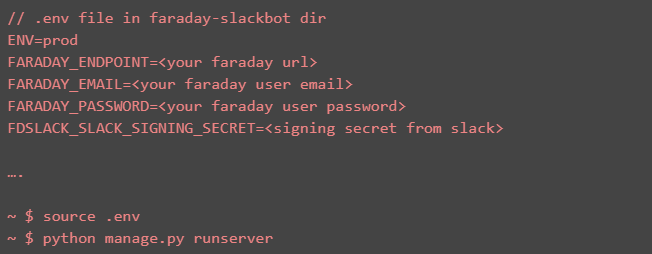
Note: The README.md file in the repository explains each parameter.
Now we need to expose over the internet this local server. This is necessary because Slack will execute requests to a specific URL that should be public.
For this blog, we are using ngrokbecause it is an easy way to expose a local server, but remember that this is just an example. We need to execute the following:
./ngrok http 5000
After that, we need to save the exposed urls:
We can check that they are working accessing to http://11da81e648a8.ngrok.io/health-check and https://11da81e648a8.ngrok.io/health-check and verifying that they respond with the following JSON:
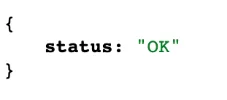
We are going to use only the https url
Step 3: Create our slash command
After creating our Slack app and exposing our faraday-slackbot server, we need to go to the section Slash Command in the left menu and click on the button Create New Command.
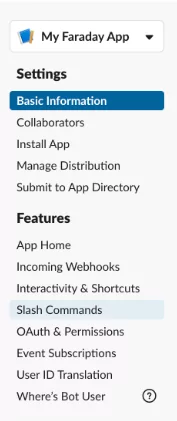
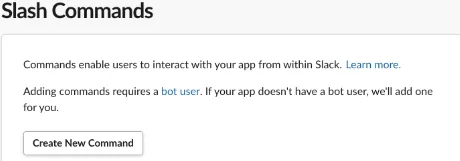
After that, a modal will appear. The mandatory fields are the name for the slash command, the request URL and the short description.
The name will be the way to invoke the slash command, in our case we are going to use /faraday, but you can use another if you want. The Request URL must be the previously exposed by us with the path /slack.
So, in our example, we are going to fill these fields as follows: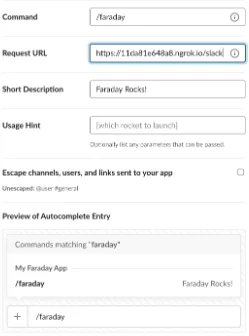
After complete the modal, we need to click on Save button, and our slash command will be created and configurated.
Step 4: Install our app in the workspace
After create our Slack app and our slash command, still we need to install in the workspace. To do this, we need to go to the Install App section on the left menu. Then, click on the button, Install app to Workspace. After that, Slack will ask you if your workspace gives permissions to your app, so we need to click on Allow button. Now we have all the environment working, let’s test it.
Step 5: Using our new slash command
Now we are going to use our slash command. The first command that we are going to execute is /faraday help: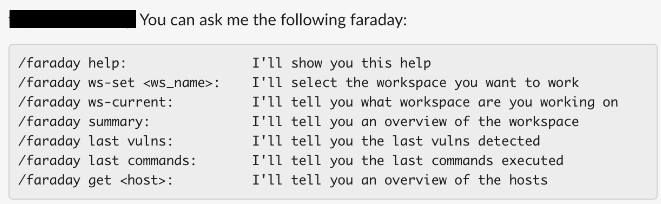
As you can see, the first command we need to execute is /faraday ws-set <ws_name> because all the following commands will be executed over the selected workspace.So we are going to execute /faraday ws-set test
As you can see, now we can execute the others commands. For example, we can view a summary for the workspace test executing /faraday summary.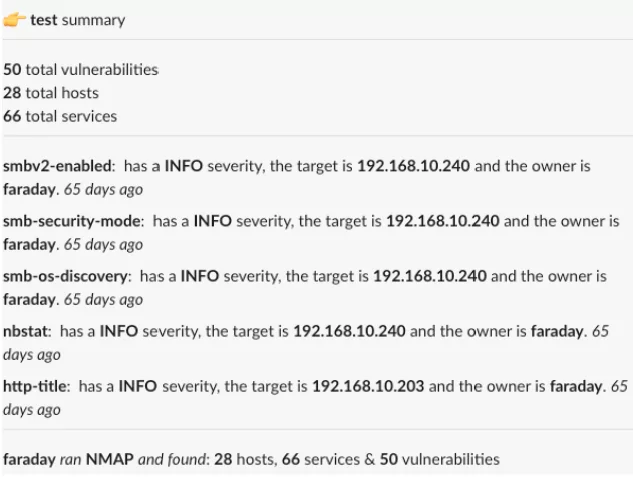
And that’s all. This repository has a basic interaction with Faraday API, but it was designed to grow and add new commands.From already, all suggestion and pull requests are welcome to improve this repository.